
How to check people in by face
Club Admin / Coach / Staff / Parent / Member · Bahasa Melayu below
Face check-in works for trainees, members, coaches and staff. There are three ways to use it:
- Face scan: a coach or admin points the phone at a person, checks the name that appears, and taps Mark present.
- Check in on your own phone: when you check in from the app, the camera opens for a quick face check before your check-in is saved. A parent points the camera at their child.
- Face kiosk: a tablet or laptop at the entrance. People look at the camera and tap their name.
It works on the website and in the Android app.
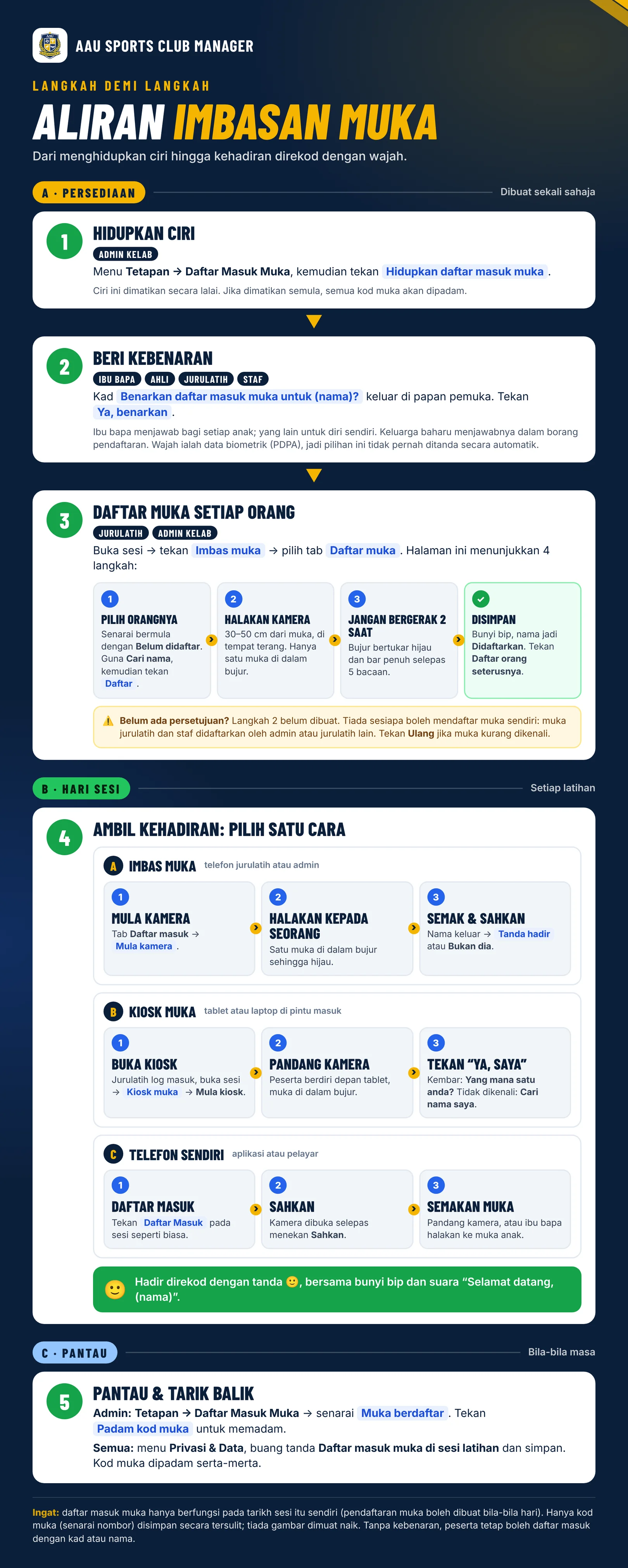
Flow poster (Bahasa Melayu): the whole setup and attendance flow on one page, from turning it on to checking in, at the top of this guide (/guides/face-checkin/). Tap it to open the full size, or save it to share on WhatsApp.
1. Club admin: turn it on
- Go to Settings → Face Check-in.
- Tap Turn on face check-in. It is off until you turn it on.
Turning it off later deletes every face code, and people must be enrolled again.
2. Everyone: give consent
A face is biometric data, which the PDPA treats as sensitive personal data. Nobody can be enrolled without their own consent, or their parent's consent. Consent is never ticked for anyone.
Once the club turns it on:
- Parents and members see a card at the top of their dashboard: Allow face check-in for (name)? with Yes, allow and Not now.
- Coaches and staff see the same card for themselves: Allow face check-in for me?
- Registration and profile forms show an unticked Allow face check-in (optional) box next to the health questions.
Consent is given club by club. A yes for one club does not let another club enrol or recognise the face. If your child trains at two clubs that both use face check-in, you are asked once for each club.
You can change it any time in the Privacy Centre (sidebar Privacy & Data). Untick Face check-in at training sessions for that club and tap Save choices, and that club's face code is deleted straight away.
3. Enrol each face once
Open the session and tap Face scan (the button is also on the Mark Attendance page), then open the Enrol faces tab. The tab shows how many people are enrolled, for example 2/27. The page walks you through four numbered steps, and the step you are on lights up:
- Choose the person. Find their name in the list and tap Enrol. The list starts on To do (people with consent who are not enrolled yet). Tap Enrolled, No consent yet or All to see the others, or type in Search name.
- Point the camera at their face. The camera opens with a blue Now enrolling (name) panel above it. Hold the phone or tablet about 30 to 50 cm away, in good light, with only their face inside the oval.
- Hold still for 2 seconds. The oval turns green and the bar fills as the camera reads the face 5 times.
- Saved. You hear a beep, the panel says Saved, and their name shows Enrolled. Tap Enrol next person to go back to the list, or Cancel to close the camera.
Use Redo if someone is not recognised well later (new haircut, glasses, years older).
People marked No consent yet cannot be enrolled until a parent (or the member, coach or staff member themselves) taps Allow face check-in on their dashboard or in their Privacy Centre. Nobody can enrol their own face: a coach's or staff member's face is enrolled by the club admin or another coach.
Only a face code (a list of numbers) is kept, encrypted. No photo is uploaded or stored.
The page works the same in a browser on a laptop, on a tablet, and in the Android app.
4. Check in with Face scan
- Open the session and tap Face scan, then Start camera. The first time, it can take about a minute to load.
- Point the camera at one person at a time, with their face inside the oval. The oval turns green when the face is close enough. Use Switch camera to change between the back and front cameras.
- Their name, role and photo appear. Check it is them, then tap Mark present. Tap Not them if it is wrong.
A beep and a spoken "Welcome, (name)" confirm the check-in. Tap the speaker button on the camera to turn sound off.
5. Check in on your own phone
When you have a face code, the app asks for a face check before it saves your check-in:
- Open the session's check-in page and check in as usual (with or without location).
- After you tap Confirm, the camera opens. Look at it (coaches, staff, members), or point it at your child (parents), until it closes on its own.
- If the face does not match, nothing is saved. Try again in better light, or ask the coach to mark you on the session page.
People without a face code check in exactly as before.
6. Face kiosk on a tablet or laptop
- A coach or admin signs in on the tablet or laptop, opens the session, and taps Face kiosk.
- Tap Start kiosk and leave the device at the entrance with the front camera facing people. The top of the screen shows your club logo and how many people are Checked in so far.
- A person looks at the camera. Their photo and Hi, (name) appear just below the face ring. They tap That's me to check in, or Not me if it is someone else.
- A green tick, a chime and a spoken "Welcome, (name)" confirm it: You're in.
- Anyone without consent, or not recognised, taps Search my name to use the name-search check-in.
What else the kiosk can show:
- Already checked in at (time): someone who already checked in sees a blue card straight away, so they don't tap again. (When sign-out is open, they see the sign-out button instead.)
- Which one are you? When two enrolled people look almost the same (for example twins), the kiosk shows a button for each name: "You look like more than one person here. Tap your own name."
- Face check-in only works on the session's own date. The kiosk shows this if you open it on another day.
The face ring fits the screen, so the kiosk works on a phone, an iPad or Android tablet (portrait or landscape) and a 13 or 15 inch laptop.
Switch between Name, Face and Card kiosks
At the top of every check-in kiosk, a coach or admin sees a Name / Face / Card switch:
- Name: the name-search kiosk (people type their name and tap Check in).
- Face: the face kiosk above. It only shows when the club has face check-in turned on.
- Card: Scan cards, which scans the QR code on a digital membership card.
Tap one to change kiosk without going back to the session page. Parents or members using the name page never see the switch.
The kiosk is not a public link: it only opens for a signed-in coach or admin, because it shows names of the people it recognises.
What you need (internet, camera, phone spec)
The same list shows on Settings → Face Check-in, on the Face scan page (tap What you need for face check-in) and, in short, on the face kiosk start screen.
- Internet: needed for every scan, because the face is matched on the server. Face check-in does not work offline. Only a small face code is sent (no photo), so normal 4G mobile data is enough.
- First time: the device downloads the face engine (about 8 MB), which can take up to a minute. After that it is saved on the device and opens faster.
- Camera: any normal phone, tablet or laptop camera, front or back. No special camera is needed. Allow camera access when asked. Laptops need a webcam.
- Light and distance: bright light, with no strong light behind the person (for example, not standing in front of a window). Stand 30 to 50 cm away so the face fills the oval.
- Apps and browsers: the Android app, Chrome (Android or laptop) or Safari (iPhone or iPad).
- Suggested phone spec: Android 8 or newer with at least 3 GB RAM, or iPhone 8 or newer. For a kiosk, a tablet or laptop from the last 4 to 5 years. Older or cheaper phones still work, only slower, because the face is read on the device itself.
Rules
- Face check-in works on the session's own date only. Enrolling works any day.
- The person must be expected at the session: in its categories or with a replacement booked (trainees and members), the session's coaches, or the club's staff. The same rules as card check-in apply, including sign-out when sign-out is on.
- A warning shows when two enrolled people look alike (for example twins). Check carefully before you confirm. On the face kiosk, the person picks their own name under Which one are you?
- A face code is deleted when consent is withdrawn, when the person leaves the club, when a coach is no longer approved at the club, or when the club turns face check-in off. Club admins can also delete one person's face code under Settings → Face Check-in.
- The attendance record shows 🙂 for a face check-in.
Cara daftar masuk dengan imbasan muka
Poster aliran: keseluruhan aliran persediaan dan kehadiran dalam satu halaman, di atas panduan ini (/guides/face-checkin/). Tekan untuk membuka saiz penuh, atau simpan untuk dikongsi di WhatsApp.
Daftar masuk muka berfungsi untuk pelatih, ahli, jurulatih dan staf, dengan tiga cara:
- Imbas muka: jurulatih atau admin menghalakan telefon ke muka seseorang, menyemak nama yang keluar, dan menekan Tanda hadir.
- Daftar masuk di telefon sendiri: semasa daftar masuk dari aplikasi, kamera dibuka untuk semakan muka sebelum daftar masuk disimpan. Ibu bapa menghalakan kamera ke anak mereka.
- Kiosk muka: tablet atau komputer riba di pintu masuk. Peserta pandang kamera dan tekan nama mereka.
- Admin kelab: buka Tetapan → Daftar Masuk Muka dan tekan Hidupkan. Jika dimatikan, semua kod muka akan dipadam.
- Persetujuan: muka ialah data biometrik (data peribadi sensitif di bawah PDPA), jadi tiada pendaftaran tanpa persetujuan dan tiada yang ditanda secara automatik. Ibu bapa dan ahli melihat kad Benarkan daftar masuk muka untuk (nama)?, manakala jurulatih dan staf melihat Benarkan daftar masuk muka untuk saya? di papan pemuka. Borang pendaftaran dan profil juga ada kotak Benarkan daftar masuk muka (pilihan) yang tidak bertanda. Batalkan bila-bila masa di Pusat Privasi dan kod muka dipadam serta-merta.
- Daftar muka sekali sahaja: buka sesi, tekan Imbas muka dan pergi ke tab Daftar muka. Halaman ini menunjukkan 4 langkah bernombor:
- Pilih orangnya: cari nama dalam senarai (bermula dengan Belum didaftar, atau guna Cari nama) dan tekan Daftar.
- Halakan kamera ke muka mereka: panel biru Sedang mendaftar (nama) keluar di atas kamera. Pegang telefon atau tablet 30 hingga 50 cm jauhnya, di tempat terang, dengan hanya muka mereka di dalam bujur.
- Jangan bergerak selama 2 saat: bujur bertukar hijau dan bar penuh apabila kamera membaca muka 5 kali.
- Disimpan: bunyi bip, nama mereka menunjukkan Didaftarkan. Tekan Daftar orang seterusnya atau Batal.
Orang yang bertanda Belum ada persetujuan tidak boleh didaftar sehingga ibu bapa (atau orang itu sendiri) menekan Benarkan daftar masuk muka. Tiada sesiapa boleh mendaftar muka sendiri; muka jurulatih dan staf didaftarkan oleh admin kelab atau jurulatih lain. Halaman ini sama di pelayar komputer riba, tablet dan aplikasi Android. 4. Imbas muka: tekan Mula kamera, halakan ke seorang demi seorang sehingga bujur menjadi hijau, semak nama dan gambar, kemudian tekan Tanda hadir. Bunyi bip dan suara "Selamat datang, (nama)" mengesahkan daftar masuk. Tekan butang pembesar suara untuk mematikan bunyi. 5. Telefon sendiri: selepas menekan Sahkan di halaman daftar masuk, kamera dibuka. Pandang kamera (jurulatih, staf, ahli) atau halakan ke anak anda (ibu bapa). Jika muka tidak sepadan, tiada apa yang disimpan. 6. Kiosk muka: jurulatih atau admin log masuk pada tablet atau komputer riba, buka sesi dan tekan Kiosk muka, kemudian Mula kiosk. Bahagian atas skrin menunjukkan logo kelab dan bilangan yang sudah daftar masuk. Peserta melihat gambar dan Hai, (nama) di bawah bulatan muka, kemudian menekan Ya, saya (atau Bukan saya). Tanda hijau, bunyi loceng dan suara "Selamat datang" mengesahkan daftar masuk. Sesiapa yang belum memberi persetujuan atau tidak dikenali menekan Cari nama saya. Kiosk ini bukan pautan awam. - Sudah daftar masuk pada (masa): kad biru keluar serta-merta untuk orang yang sudah daftar masuk, supaya mereka tidak menekan lagi. - Yang mana satu anda? Jika dua orang yang didaftarkan sangat serupa (contohnya kembar), kiosk menunjukkan butang bagi setiap nama. Peserta menekan nama sendiri. - Bulatan muka mengikut saiz skrin, jadi kiosk berfungsi pada telefon, iPad atau tablet Android dan komputer riba 13 atau 15 inci. 7. Tukar kiosk Nama / Wajah / Kad: di bahagian atas setiap kiosk daftar masuk, jurulatih atau admin melihat suis Nama / Wajah / Kad. Nama ialah kiosk cari nama, Wajah ialah kiosk muka (hanya jika daftar masuk muka dihidupkan), dan Kad ialah Imbas kad untuk kod QR kad keahlian digital. Tekan untuk bertukar tanpa kembali ke halaman sesi. Ibu bapa dan ahli di halaman nama tidak melihat suis ini.
Persetujuan mengikut kelab: persetujuan diberi bagi setiap kelab. Ya untuk satu kelab tidak membenarkan kelab lain mendaftar atau mengenal pasti muka itu. Menarik balik persetujuan di Privasi & Data hanya memadam kod muka bagi kelab tersebut.
Hanya kod muka (senarai nombor) yang disimpan secara tersulit, tiada gambar. Daftar masuk muka hanya berfungsi pada tarikh sesi itu sendiri.
Keperluan (internet, kamera, spesifikasi telefon): senarai ini juga ada di Tetapan → Daftar Masuk Muka, di halaman Imbas muka (tekan Keperluan untuk daftar masuk muka) dan secara ringkas di skrin mula kiosk muka.
- Internet: wajib untuk setiap imbasan, kerana muka dipadankan di server. Daftar masuk muka tidak berfungsi tanpa internet (offline). Hanya kod muka yang kecil dihantar (tiada gambar), jadi data mudah alih 4G biasa sudah cukup.
- Kali pertama: peranti memuat turun enjin pengecaman muka (kira-kira 8 MB), yang boleh mengambil masa sehingga seminit. Selepas itu ia disimpan dalam peranti dan dibuka lebih cepat.
- Kamera: mana-mana kamera telefon, tablet atau komputer riba biasa, depan atau belakang. Tidak perlu kamera khas. Benarkan akses kamera apabila ditanya. Komputer riba perlu ada kamera web (webcam).
- Cahaya dan jarak: tempat yang terang, tanpa cahaya kuat di belakang orang itu (contohnya jangan berdiri membelakangkan tingkap). Berdiri 30 hingga 50 cm jauhnya supaya muka memenuhi bujur.
- Aplikasi dan pelayar: aplikasi Android, Chrome (Android atau komputer riba) atau Safari (iPhone atau iPad).
- Spesifikasi telefon yang dicadangkan: Android 8 ke atas dengan sekurang-kurangnya 3 GB RAM, atau iPhone 8 ke atas. Untuk kiosk, tablet atau komputer riba dalam 4 hingga 5 tahun terakhir. Telefon lama atau murah masih boleh digunakan, cuma lebih perlahan, kerana muka dibaca dalam peranti itu sendiri.